Signing in
Since 0.1.0
Ajutant uses your organisation’s Microsoft account to sign you in, the same account you use for email and Teams. There’s no separate password to remember, and your administrator controls who has access.
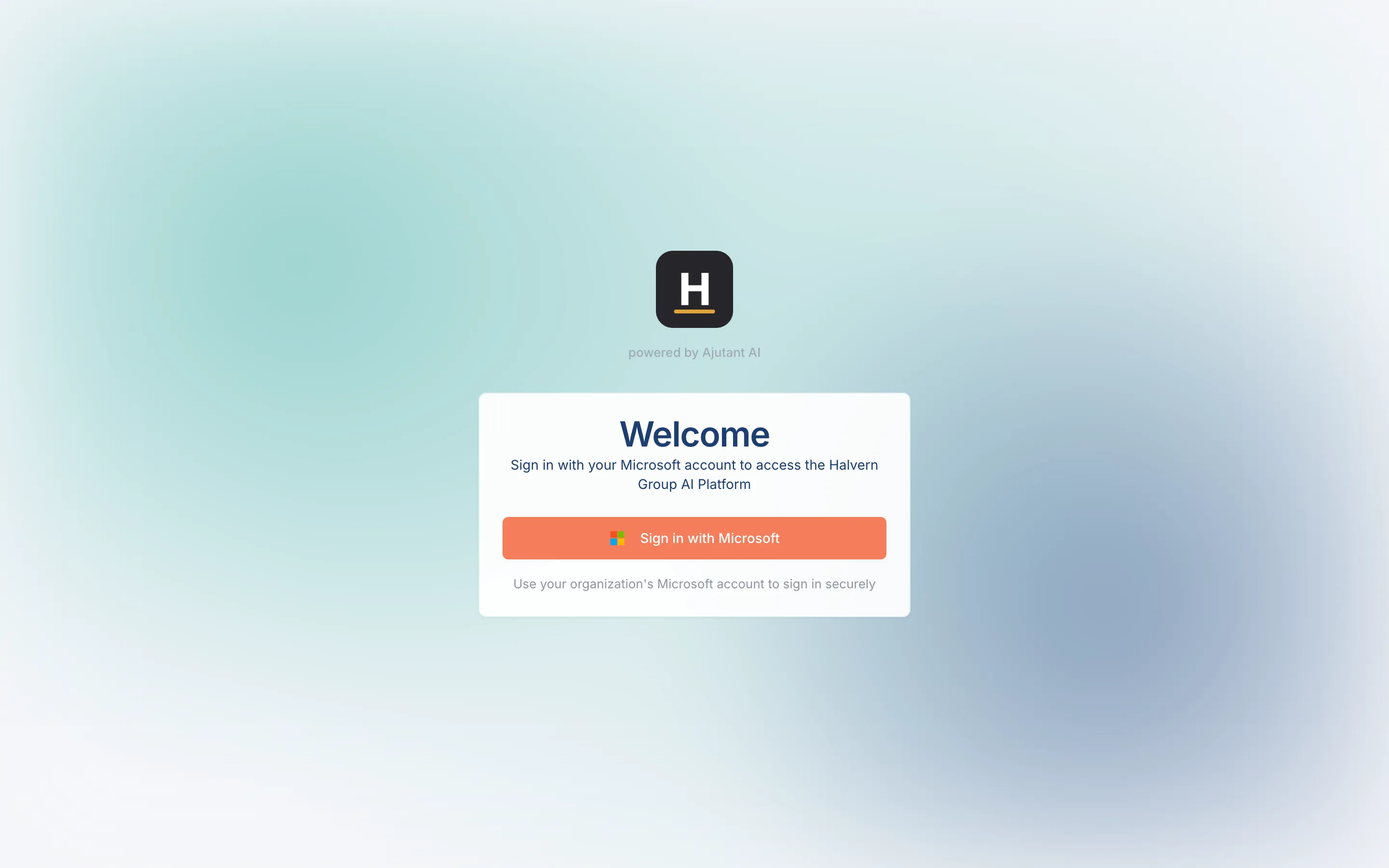
Sign in
Section titled “Sign in”-
Go to your organisation’s Ajutant address (your administrator will have shared it).
-
Select Sign in with Microsoft.
-
Complete your organisation’s normal Microsoft sign-in, including multi-factor authentication if it’s enabled.
-
You’ll land on the Ajutant home page, signed in.
If you can’t get in
Section titled “If you can’t get in”- “You don’t have access”: your account hasn’t been granted access yet. Ask your Ajutant administrator to add you.
- Wrong account: sign out of the Microsoft account in your browser, then try again and pick your work account.
Before you can start chatting, you’ll be asked to accept the usage policy, see Accepting the usage policy.