Get an API key
You generate and manage your own developer API keys from your profile, for any team that has the developer API enabled.
Before you start
Section titled “Before you start”The developer API is enabled per team, by an administrator. Until an admin enables it for a team, creating a key for that team fails with “Developer API is not enabled for this team”.
-
An administrator (Platform Admin or Client Admin) opens Admin → Developer API → Management.
-
They enable the developer API for the team, and approve at least one model the team may call. Enablement also sets the team’s rate, spend, and token quotas.
-
Once the team is enabled, you can create a key for it below.
Create a key
Section titled “Create a key”-
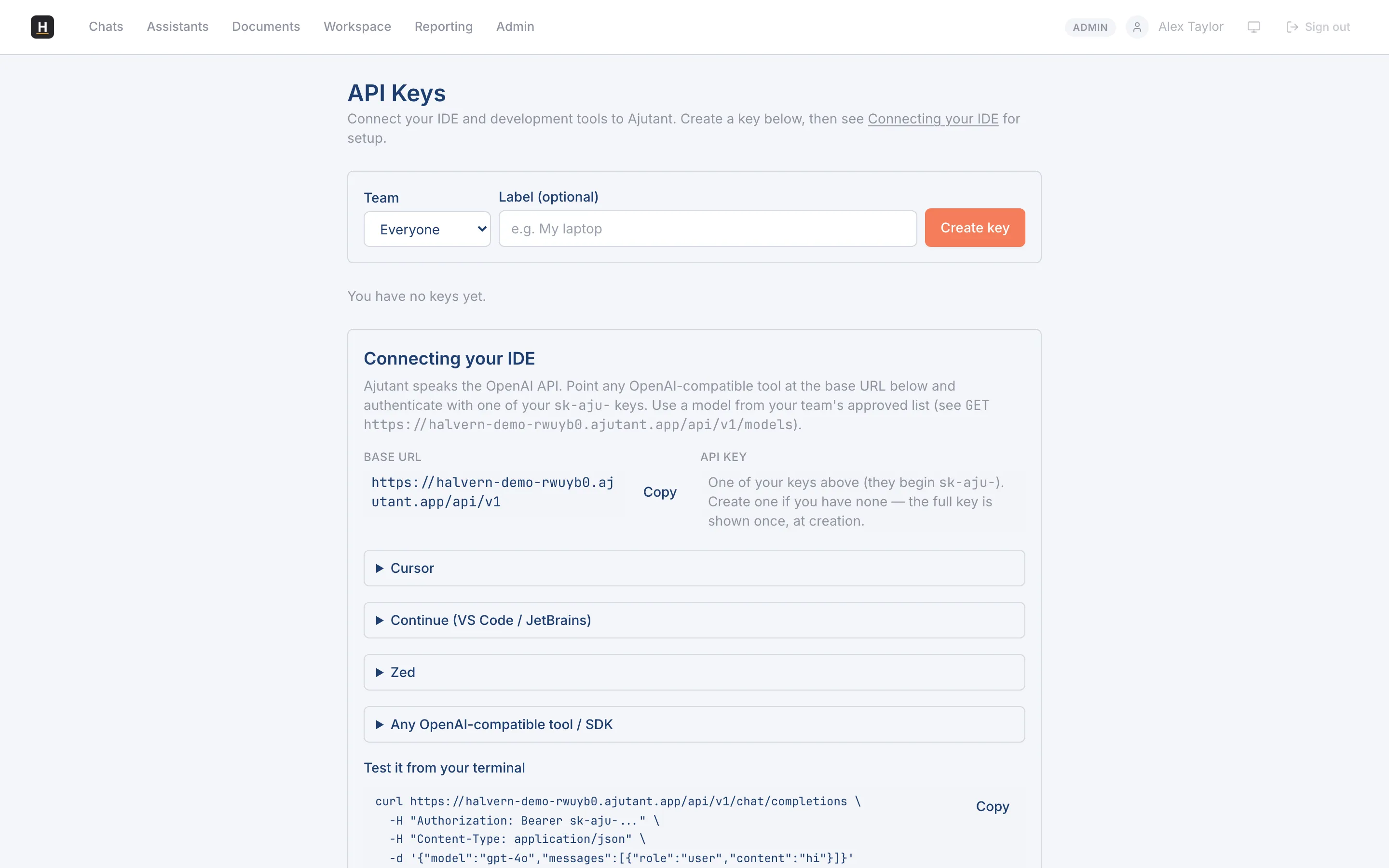
Go to your profile, then API Keys.
-
Choose the Team the key belongs to (see the note above), add an optional label, then generate the key. It’s shown once, so copy it straight away and store it somewhere safe.
-
Copy the base URL shown alongside it. That’s what you point your OpenAI client at.
Use it
Section titled “Use it”Set the base URL and your key in your OpenAI client, then call the API as usual. Use a model
from your team’s approved list (GET /api/v1/models). Keys carry your access and your team’s
quotas.
Revoke a key
Section titled “Revoke a key”Made a key you no longer need, or think one may be exposed? Revoke it from the same place. Revoking takes effect immediately.